
Put a screen near the bar showing guests’ photos as they’re uploaded, and something odd happens. People who weren’t planning to share anything start pulling out their phones, because they want to see their photo come up. In our experience a live slideshow is the single biggest boost to how many photos you collect, more than signage, more than table cards.
It’s also simple to set up, as long as you test it at the venue and not just on your kitchen table.
What you need
A screen, something to drive it, and an internet connection. That’s genuinely it.
The screen can be the venue’s projector, a TV you bring, or a rented monitor on a stand. Ask your venue first; most reception venues have a projector for speeches and will happily leave it running. To drive it, a laptop with an HDMI cable is the most reliable option. A smart TV’s built-in browser can work, but they’re slow and some won’t stay in full screen. A cheap streaming stick casting from a laptop sits in the middle.
Internet is the part that catches people out. The slideshow only needs a modest connection, but the venue Wi-Fi might be patchy in the room where the screen is. Test it in that exact spot. If it’s bad, a phone hotspot taped behind the TV is a perfectly respectable solution.
Setting it up with QR Moments
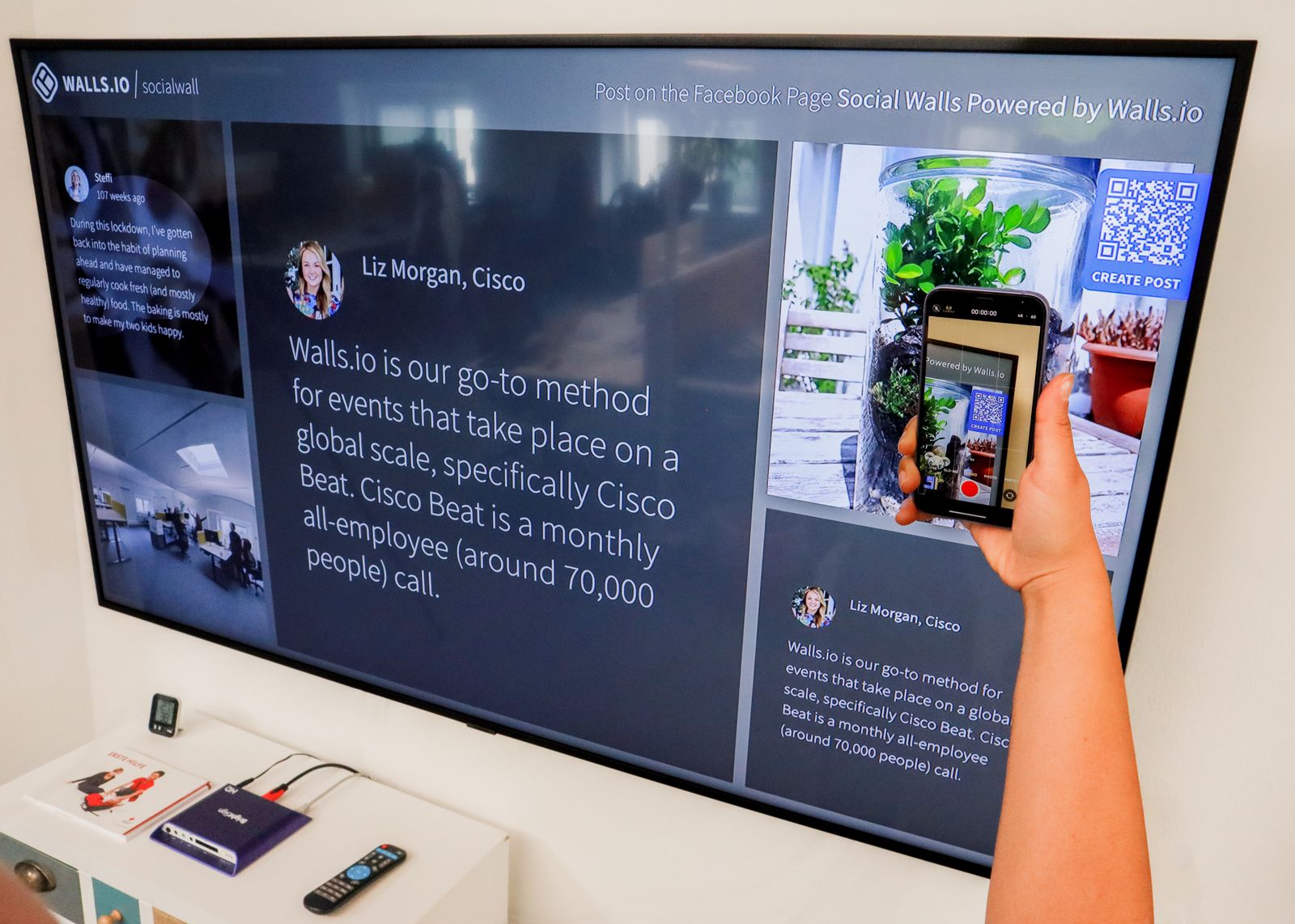
Create your album, print the QR code for your table cards, and open the slideshow view from your dashboard on the laptop connected to the screen. Switch the browser to full screen. New uploads appear on their own, and the slideshow cycles through the album in between. The live slideshow is included on both QR Moments plans, so you don’t need Premium for this.
Two things worth doing before guests arrive. Upload five or six photos yourself (the venue, the flowers, a photo of the two of you from the engagement shoot) so the screen isn’t empty when people walk in. And put the QR code on or next to the screen itself. It’s the most-scanned spot in the room, because everyone’s already looking at it.
Where to put the screen
Near the bar is the classic spot, for the simple reason that people stand there with nothing to do for a few minutes. Cocktail hour is the other good place, while you’re off having portraits taken and guests are milling around.
Avoid the dance floor. The lighting is wrong for screens, nobody stands still, and the slideshow fights with the DJ’s lights. Avoid anywhere behind the top table during speeches too, since guests will watch the photos instead of the person talking (and the person talking will notice).
Should you turn on moderation?
Honestly, for most weddings, no. Your guests are your friends and family, and moderation means someone has to sit with a phone approving photos all night, which defeats the point. The occasional slightly unflattering photo of a groomsman is part of the fun.
Turn it on if there’s a specific reason: a guest list with some known troublemakers, a very formal family, or a corporate-adjacent event where the boss is watching. QR Moments has moderation on both plans, so the option’s there if you need it.
Things that go wrong
The laptop goes to sleep. Change the power settings to never sleep and plug it in. This is the most common failure by far, and it happens around 9:30pm when nobody’s watching it.
Nobody knows what it is. A screen showing photos isn’t self-explanatory. Add a line on the screen or a small sign underneath: “Scan the code and your photos appear here.”
The venue unplugs it to plug in something else. Tell the coordinator it’s staying on all evening, and name a friend who’s in charge of it.
That’s about it. Twenty minutes of setup for what usually becomes a crowd around the bar watching photos of themselves.
The same setup works at corporate events and award nights, milestone birthdays and anniversary parties. For the rest of the guest photo setup, see our guide to the wedding QR code for photos.
Set up your album and slideshow → From $49 one-time. Create a free test album first if you’d like to try it.
[…] shoebox. Ask classmates to bring yearbook photos and old prints from school trips, and run a live slideshow on a screen at the venue. Seed it beforehand with photos from the yearbook. Watching 1999 and 2026 […]
[…] and send it to whoever is printing your table cards and signage. If the venue has a screen, run the live photo slideshow on it during dinner; teenagers upload a lot more once they see their friends on the big […]